WATCH. TRY. DONE.
Watch. Click. Done.
You do not need to read a long manual first. Watch the buttons and result in a short example, then follow along.
The examples were recorded in Korean. Button names and instructions are provided in your selected page language.
Send suggestions and feedback to ddrfemdom@gmail.com; we may incorporate them after review.
Photos & images
Open tool ↗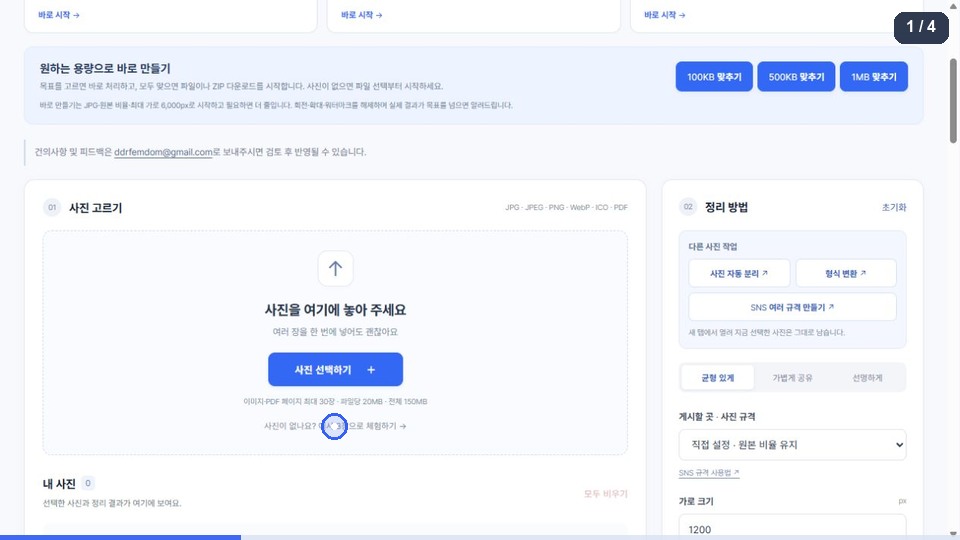
Load sample photos → choose dimensions and format → download the result
This is a recorded example. Issues and numbers reflect the recording; open the tool for current information.
The animation could not load. Follow the steps below to try the tool directly.
Follow these steps
- Choose the three sample images to try the photo editor.
- Choose the width and output format, then select “Process images”.
- Check the results, then choose “Download ZIP” to save them together.
Custom dimensions keep the original ratio. Fixed social sizes offer crop-to-fill or fit-with-padding.
Split collage photos
Open tool ↗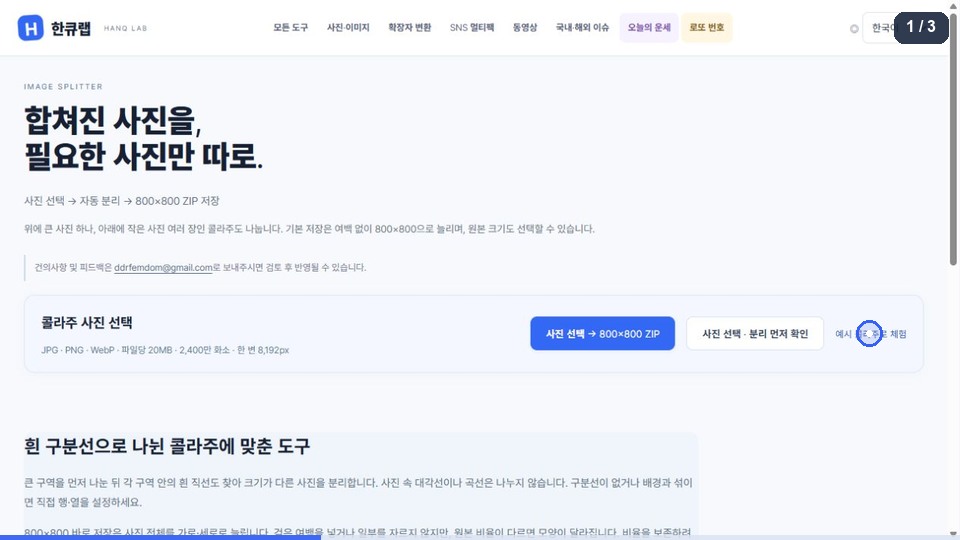
Choose a collage → check the sections → save an 800×800 ZIP
This is a recorded example. Issues and numbers reflect the recording; open the tool for current information.
The animation could not load. Follow the steps below to try the tool directly.
Follow these steps
- Choose the sample collage to see the automatically detected sections.
- Choose the sections to save in the preview and check the output dimensions.
- Choose “Save all at 800×800” to download the separate images in a ZIP.
The tool detects straight white dividers. The 800×800 shortcut stretches the whole image without padding, so its proportions may change.
File converter
Open tool ↗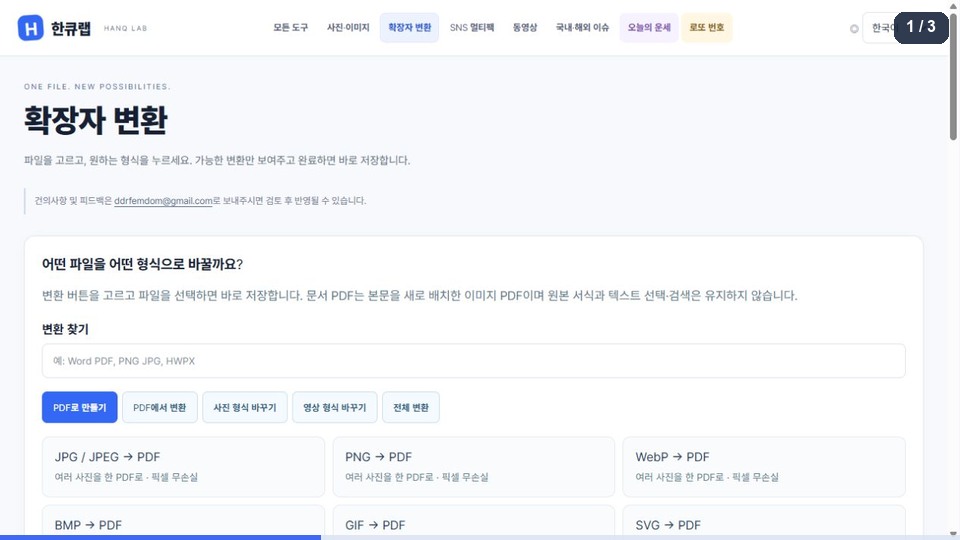
Choose input → output format → select a file → save the result
This is a recorded example. Issues and numbers reflect the recording; open the tool for current information.
The animation could not load. Follow the steps below to try the tool directly.
Follow these steps
- Choose the input → output format you need from the conversion list.
- Choose “Select files”, then a file matching the selected input format.
- When conversion finishes, save the result and check its contents and format.
Only the listed conversions are supported. Document-to-PDF conversion reflows the content, so the original formatting may change.
Video
Open tool ↗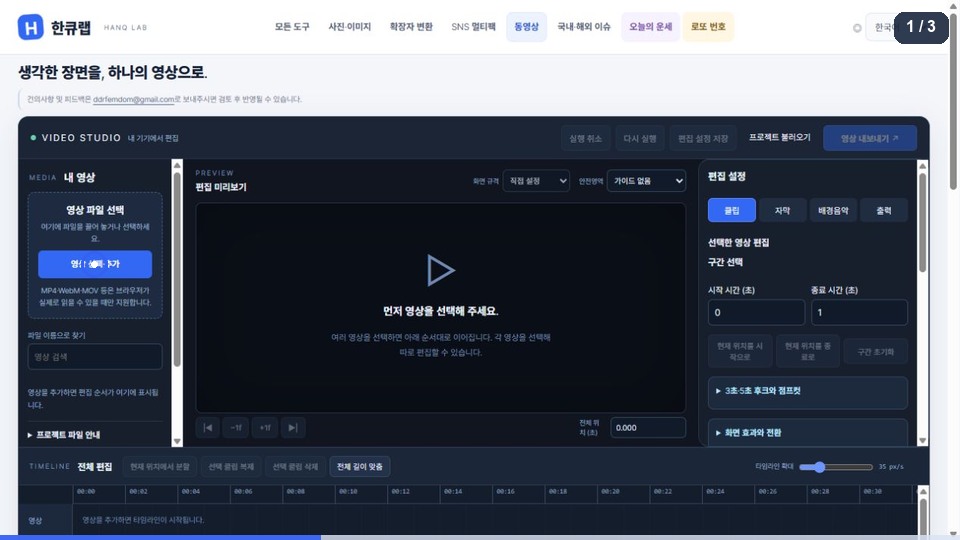
Choose a video → add captions → download WebM for free
This is a recorded example. Issues and numbers reflect the recording; open the tool for current information.
The animation could not load. Follow the steps below to try the tool directly.
Follow these steps
- Choose “Select / add videos” to load your files.
- In the Captions tab, choose “Add caption at current position” and enter your text.
- Choose “Export video”, then save the finished result with “Download for free”.
Video output is currently WebM. Supported input codecs and practical sizes depend on your device and browser.
Domestic & global issues
Open tool ↗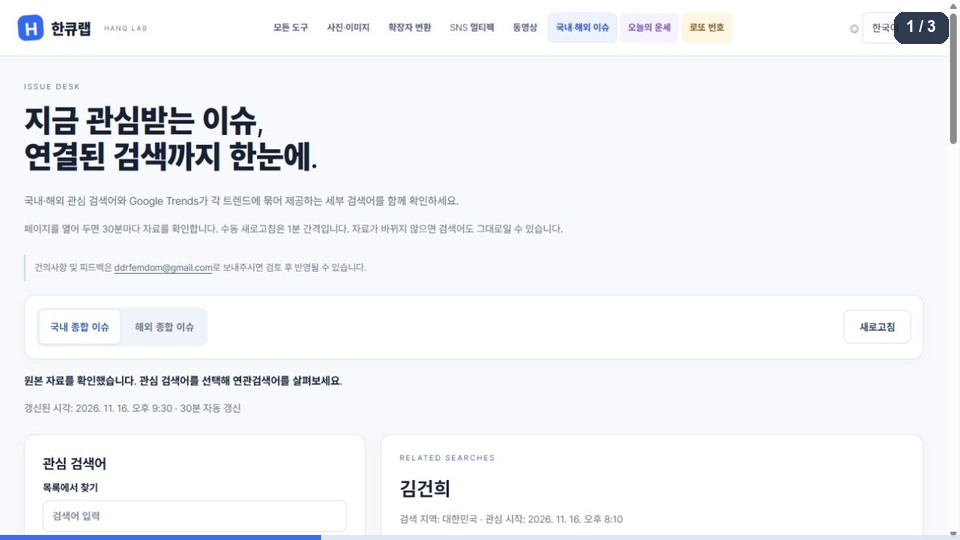
Choose a region → select an issue → check sources and related searches
This is a recorded example. Issues and numbers reflect the recording; open the tool for current information.
The animation could not load. Follow the steps below to try the tool directly.
Follow these steps
- Choose “Korea issues” or “International issues”.
- Choose a search term in the list to open related information.
- Check the updated time and source. Choose “Refresh” to check again.
The example’s search terms and times are from the recording. Search interest does not establish whether an event is true.
Today’s fortune
Open tool ↗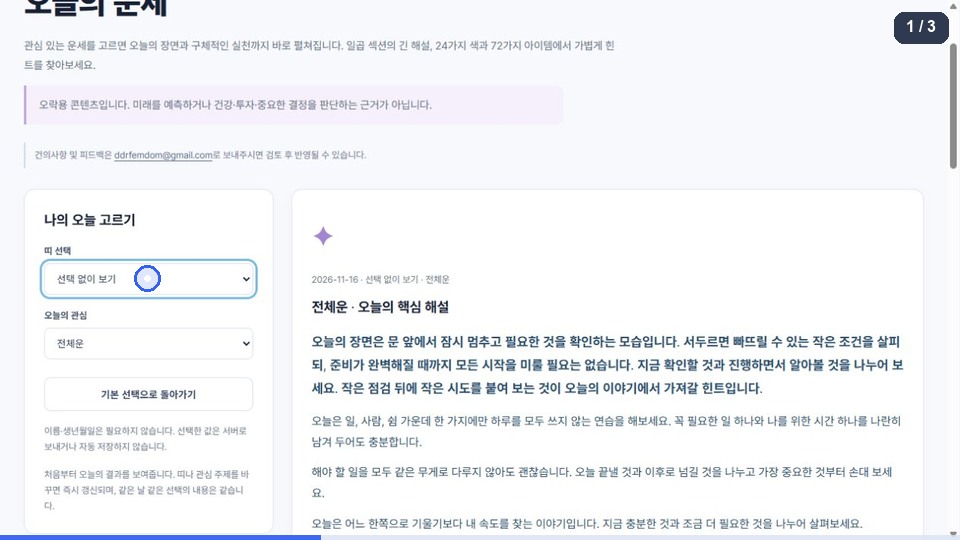
Choose an animal and focus → read today’s reflection → save TXT
This is a recorded example. Issues and numbers reflect the recording; open the tool for current information.
The animation could not load. Follow the steps below to try the tool directly.
Follow these steps
- Choose a zodiac animal. You can also continue without selecting one.
- Change today’s focus to see the corresponding reflection immediately.
- Explore the lucky color and item, then choose “Save full reflection as TXT”.
Fortunes are entertainment. The same choices on the same day show the same content; this is not a prediction.
Lottery numbers
Open tool ↗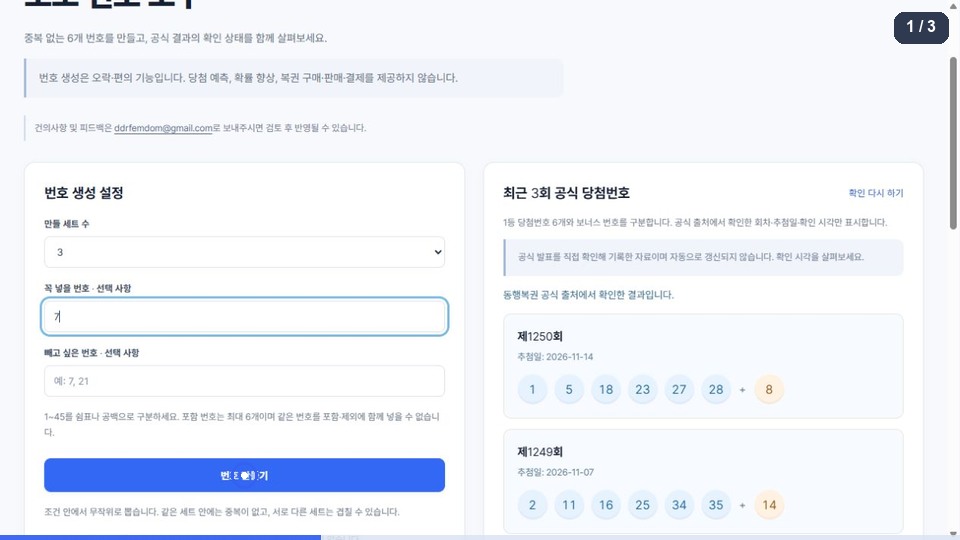
Choose sets and conditions → generate numbers → copy numbers
This is a recorded example. Issues and numbers reflect the recording; open the tool for current information.
The animation could not load. Follow the steps below to try the tool directly.
Follow these steps
- Choose the number of sets and optionally enter numbers to include or exclude.
- Choose “Generate numbers” to create random sets that match your conditions.
- Choose “Copy all numbers” to copy the result. Check official winning numbers separately.
Generating numbers is not a prediction, purchase or lottery entry. Conditions do not improve the odds.
Social Multipack
Open tool ↗Choose photos → select multiple sizes → download a multipack ZIP
This is a recorded example. Issues and numbers reflect the recording; open the tool for current information.
The animation could not load. Follow the steps below to try the tool directly.
Follow these steps
This tool may show an optional advertising message. Identical output sizes are generated only once.